New Year Rollover
New Year Rollover (NYR) is an automated process that prepares classes for the new school year by deleting them and releasing product subscriptions to be used for the next school year. SuccessMaker Assignments are removed during the New Year Rollover process.
Go to SuccessMaker to review the student placement method prior to New Year Rollover.
Auto-rostered districts have an additional time parameter referred to as Pause Period, described below.
- Pause Period is a customizable time frame during which the district can make changes to the ingestion files in preparation for the new school year without impacting teacher and student access to the current school year’s data.
- Pause Period is designed to temporarily stop data file ingestions into Realize using the time frame selected in Realize so that teachers and students can continue to access the current classes while getting ready for the upcoming school year. When the pause period ends, Realize resumes data ingestions for the new school year, allowing the district to start the year with clean data.
Once new year rollover completes, the teachers losses the access to the previous year’s data, unless the district allows teachers to opt out of specific classes.
Using SuccessMaker products, a notification displays that changing the New Year Rollover date and class opt out options will not prevent SuccessMaker Assignments from being removed during the SuccessMaker New Year Rollover process.
 How to Change Pause Period in Realize
District Administrators can change the pause period dates for their district directly in Realize. (School administrators have view access to the New Year Rollover tab, but cannot make any changes.)
Caution: If there is more than one district administrator, it is important to coordinate within the district and the dates for which pause period are set.
Follow the steps below to change the pause period dates for the district:
- Sign in to SavvasRealize with the district administrator credentials.
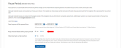
- Navigate to the District page. Use the drop down arrow to select New Year Rollover. The New Year Rollover page appears.
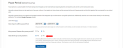
- Select either calendar icon to the right of the dates.
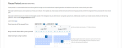
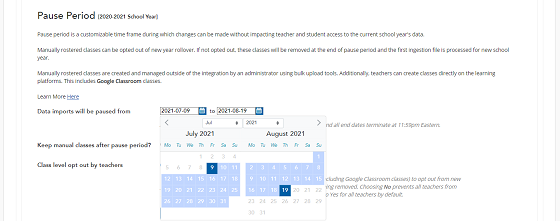
- Select the start date, and then select the end date.
- Select the blue Save Settings button to save the dates. A confirmation message displays temporarily indicating Pause period settings have been updated.
Pause period dates cannot be changed after new year rollover takes place. After new year rollover completes for the district, the calendars are grayed out and the following message displays: New Year Rollover already completed for the current calendar year. Changes cannot be made to the pause period dates until the next calendar year.
Keep manually rostered classes after pause period?
Manually rostered classes can be opted out of new year rollover. If not opted out, manually rostered classes are removed at the end of pause period and when the first ingestion file is processed for the new school year.
Manually rostered classes are created and managed outside of the integration by an administrator using bulk upload tools. Additionally, teachers can create classes directly on the learning platforms, including Google Classroom™ classes.
To change how manually rostered classes are managed during new year rollover for the district, follow the steps below to make changes.
- Sign in to SavvasRealize with the district administrator credentials.
- Navigate to the District page. Use the drop down menu to select New Year Rollover. The New Year Rollover tab appears.
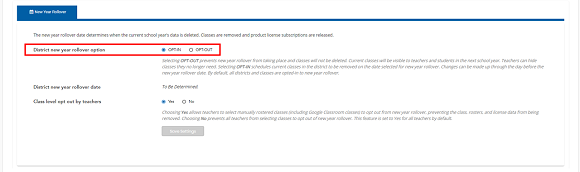
- Select the radio button next to the option to apply to the entire district. OPT-IN is the default selection and schedules all manually created classes, including Google Classroom™ classes to be removed on the new year rollover date. Selecting OPT-OUT automatically removes all manually created classes from the new year rollover process, and makes them visible and accessible for the upcoming school year.
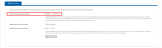
District level settings override settings teachers make in Realize.
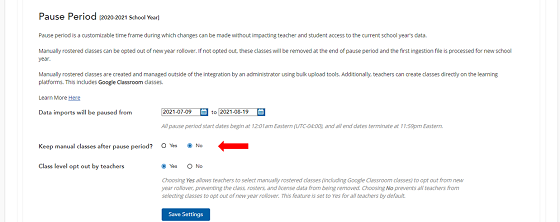
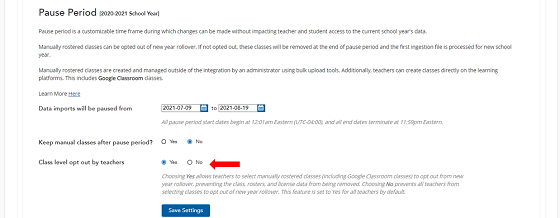
 Class level opt out by teachers
Teachers who have manually created classes and would like to keep them for the next academic year have the option to opt specific classes out of the new year rollover process. Districts that do not wish for their teachers to opt classes out can disable this feature through Realize.
-
Sign in to SavvasRealize with the district administrator credentials.
- Navigate to the District page. Use the drop down menu to select New Year Rollover.
- Select the radio button for No. This prevents all teachers from selecting classes in Realize to opt out of new year rollover. By default, this setting is enabled and set to Yes. For their manually rostered classes in Realize, teachers see an option to retain that class for the next school year. See Class Settings for New Year Rollover in the Realize teacher help to learn more.
Classes that have been opted out of the new year rollover process can be easily filtered on the Classes tab. See Search for (Filter) Classes to learn how.
Frequently Asked Questions (FAQs)
What will happen if I do not actively select a pause period for my district?
If the administrator is not actively change the pause period, the district uses the default dates, or the dates the administrator chose last year. The default dates are:
Start date = June 30
End Date (Ingestion Resumes, NYR begins) = August 10
What will happen during the pause period?
During the pause period, the ingestion files remain in dry run mode only. No changes are saved back to the database. This allows the administrator to evaluate the information and make as many changes as needed to get the most accurate data possible for the new school year. Ingestion files are not processed during this time. The administrator receive the warnings and errors in the email notifications and SFTP Reports, but nothing is saved to Realize during the dates selected for the pause period. The SFTP Reports indicates that the administrator is in the pause period.
Dry run mode evaluates each file in isolation, and does not validate relationships between the files or compare incoming files with previous files.
How do I select the appropriate pause period for my district?
The following is an example that provides more context to help determining the best pause period for the district.
School year ends on June 3
Summer school begins June 20
SIS rollover work begins July 15
SIS rollover ends July 27
Teachers are back preparing for the new school year August 14
The new school year begins August 21
Based on the example dates provided, pause start date should be after June 20 and before July 15. July 10 works well.
Pause end date should be after July 27 and before teachers get back on August 14. August 9 works well. The data are more stable at this time.
The pause period date should be AFTER the session (semester, quarter, or summer) to synchronize. This allows changes to be made in the SIS and synched with Realize and the learning platforms. The following is additional information to consider before selecting the district’s pause period:
- Dry run ingestions are on-going during the pause period data range.
- The roster sync are paused until the end date of the pause period.
- New Year Rollover occurs the same day the pause period ends. On this day, classes, class data, and product subscriptions for the old school year are deleted on the learning platforms, and new data is ingested to prepare for the upcoming school year.
- The end date of the pause period cannot be changed the day after. New Year Rollover is automatically triggered on the end date if new files are found.
- If no files are available to load for the new year, New Year Rollover occurs as soon as files are sent.
- If the previous year’s data is sent for the new year, New Year Rollover is not processed, and the application rejects all the rows.
What if I need to modify the pause period?
See How to Change Pause Period in Realize steps above. Pause start date can be changed after the original pause date has passed, but before the end date (New Year Rollover) has passed. The pause end date can also be changed any time prior to New Year Rollover occurring. The example below is provided for additional clarification.
Example 1 – Change of pause start date
- Original pause start date = July 1. This stops the data file ingestion process.
- On July 3, the pause start date is changed to July 10. Ingestion file processing resumes until July 10.
Example 2 – Change of pause end date
- Original pause end date = August 1
- On July 25, the pause end date is changed to August 7. Ingestion file processing continues to be halted. On August 8, New Year Rollover takes place, and ingestion files for the new school year begins to be processed.
Pause Period for Mixed Mode Districts
Districts that are considered mixed mode - districts that predominantly auto roster classes, but also have one or more manually rostered class - can check when their new year rollover occurs for all of the schools, regardless of rostering source. Auto rostered classes continues to follow the established pause period dates.
For manually rostered classes, administrators have the option to opt out of new year rollover.
Caution: If manually rostered classes are not opted out of new year rollover, and removed after the district pause period ends, and when a new ingestion file is sent for the auto-rostered classes.
Academic Session
The Academic Sessions tab allows you to set dates for when the school year starts and ends. You must finish the New Year Rollover process before the academic start date unless you've selected to opt out of it (Auto-rostered customers can only opt out of New Year Rollover for manual classes). The Academic Session dates are required if you are licensed for SuccessMaker Math or Reading.
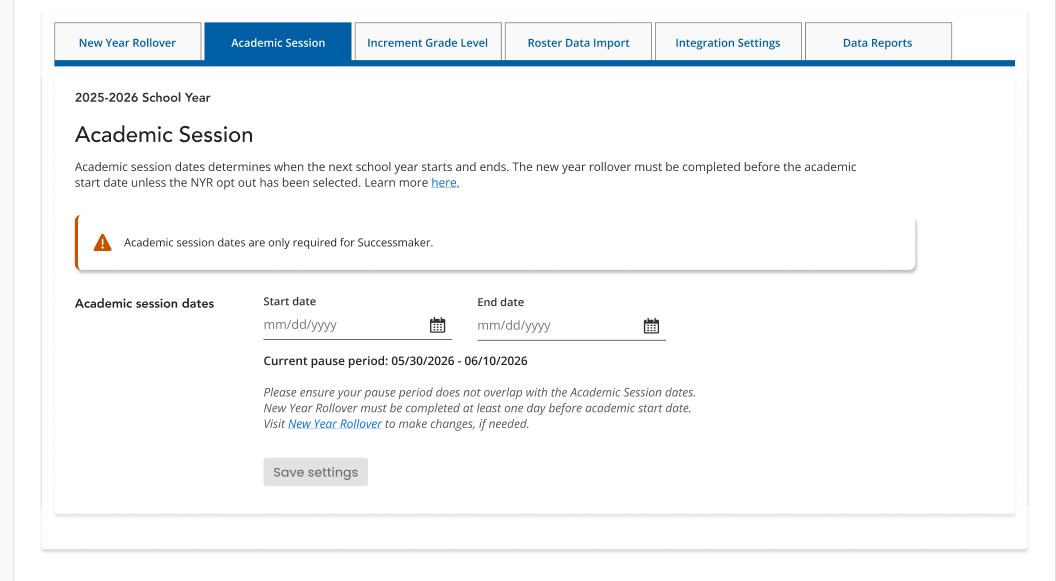
To set Academic Session dates:
-
Navigate to the District tab.
-
Select the Academic Session tab.
-
Use the calendar buttons to select an Academic Session start date and end date.
-
Press the Save settings button.
You can't use the New Year Rollover Pause Dates as the Academic Session Start Date, and you must plan and complete the New Year Rollover process on a date that occurs before the Academic Session Start Date.
If Academic Session dates are not set, the SuccessMaker Administrator Dashboard Widget will display an error message. See more on this page for information on this feature and how to resolve issues with missing data.